

Where is the pickup with plate AB-CD-12 right now? What trips did truck 12 make yesterday? Once you connect Atlas to Claude, you can ask the assistant those questions and it answers with your fleet's data, using your own Atlas account. There's nothing to install and nothing to request from UGPS: you set it up in a few minutes from Claude.
The screenshots in this guide show Claude in Spanish. In English, the buttons are in the same places.
What you need
- Your Atlas account, the same one you use to sign in to the platform.
- Claude on the web (claude.ai), in the desktop app or on your phone. It works with any plan, including the free one, which allows one custom connector.
- The connector address, which is always the same:
https://mcp.ugps.io/mcp
If your company uses Claude on a Team or Enterprise plan, the workspace admin adds the connector once. You just go to Connectors and choose Connect next to Atlas (step 3).
Step 1: add the custom connector
In Claude, open Settings and go to Connectors. Tap Add and choose Add custom connector.

Give it a name you'll recognize, for example Atlas MCP, and paste https://mcp.ugps.io/mcp as the address.
Step 2: keep the sign-in option that's already selected
Further down, Claude asks how it should identify itself to the server. Don't change anything: in the OAuth client section, automatic registration is already selected and marked as detected. You don't need to add headers or open the advanced settings either. Tap Add.
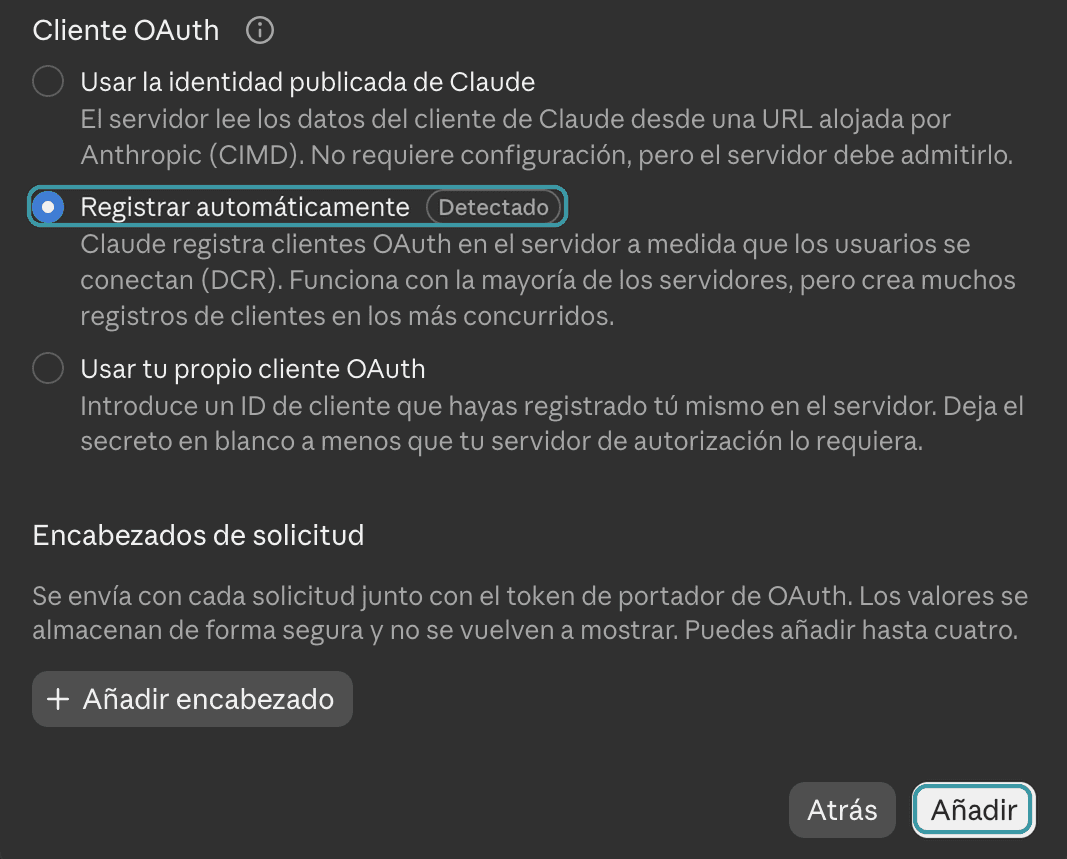
Step 3: connect your Atlas account
The connector shows up in your list with the UGPS shield, not connected yet. Tap Connect.
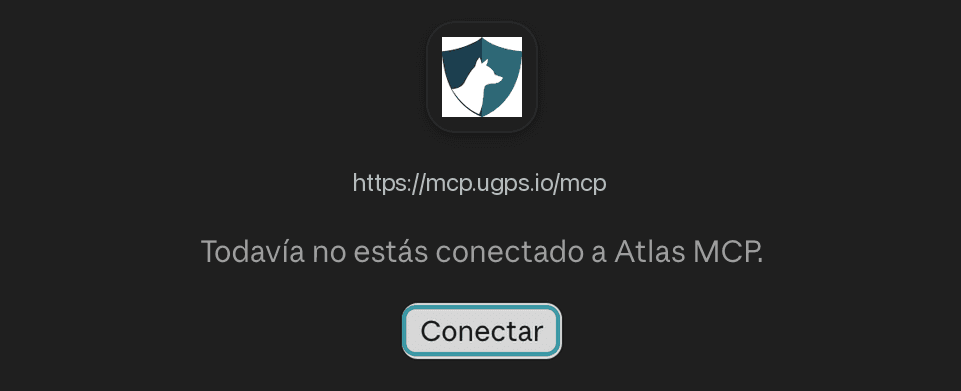
An Atlas window opens. Enter your Atlas email and password and continue. If your account uses two-step verification, enter the code you get by email. Finally, Atlas shows you the account and the company you're about to connect: if everything is right, authorize the connection.
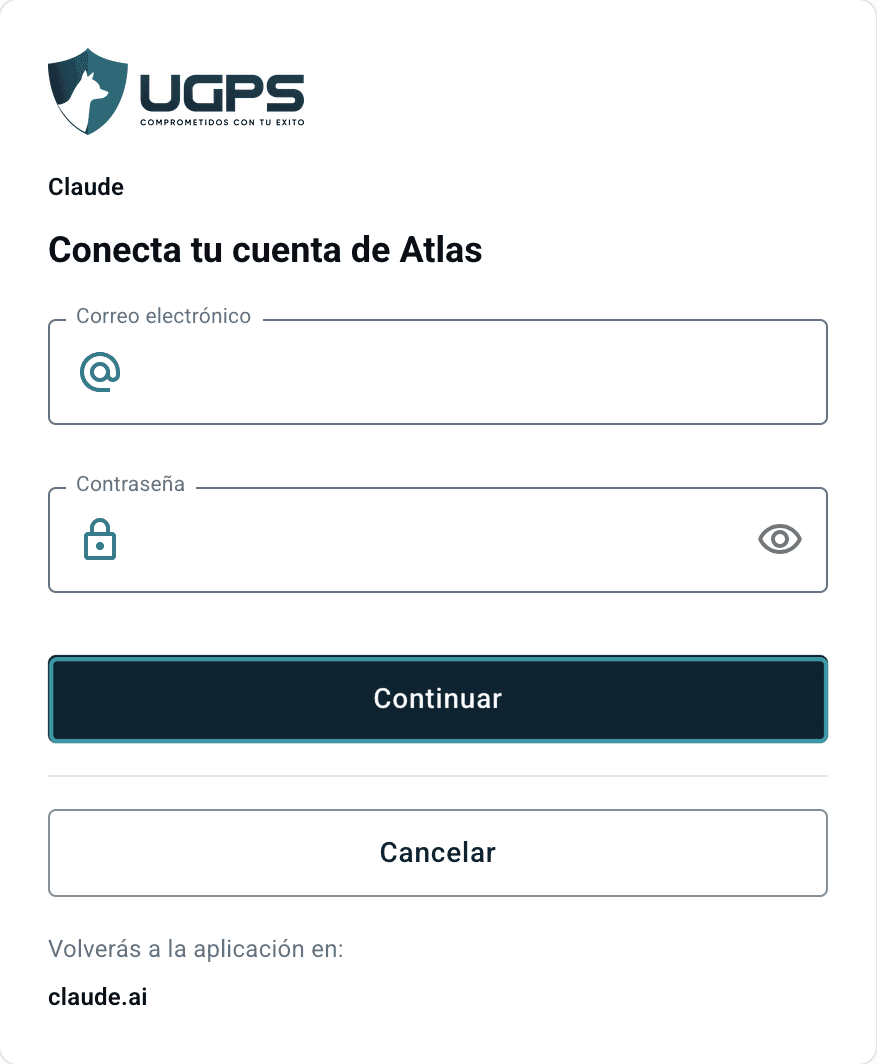
Only approve it if the window names Claude, the assistant you're setting up. If that screen shows up and you didn't start a connection, cancel it.
Step 4: choose when Claude can query Atlas
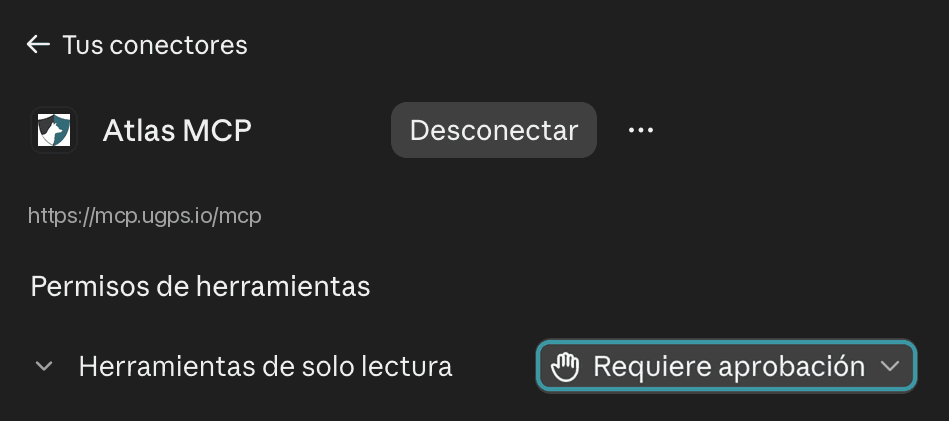
Back in Claude, the connector shows as connected. Under Tool permissions, decide whether Claude asks for your approval each time it queries Atlas or can query it without asking. All of the Atlas tools are read-only.
Step 5: ask your first question
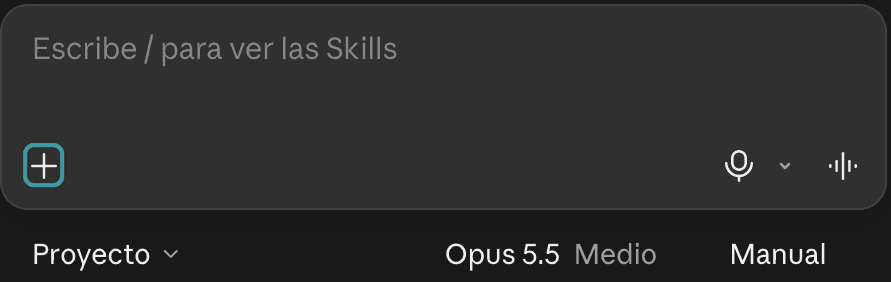
In a new conversation, tap the + button in the message box, check that the Atlas connector is on and ask away.
Ask the way you'd ask someone on your team:
- “Which vehicles are moving right now?”
- “How many kilometers did the fleet drive this week?”
- “Were there any speeding alerts this week?”
- “How many times did truck 12 enter the central warehouse this month?”
- “Which field tasks are still pending today?”
If you don't know where to start, ask it “What can you do with Atlas?”
Good to know
- Read-only. Claude doesn't create, edit or delete vehicles, tasks, alerts or any other Atlas data.
- It sees what you see. It only answers with the vehicles, groups and data your user can access. Each person in your company connects their own account.
- The connection lasts up to 30 days. When it expires, Claude asks you to authorize it again (Atlas guide, in Spanish).
- No extra cost. Connecting Atlas is free, and Claude's free plan allows one custom connector: that's enough for Atlas.
- Disconnect in one tap. In Connectors, open the Atlas connector and tap Disconnect. If you think someone else connected an assistant with your account, change your Atlas password and let UGPS support know.
The full guide, also for ChatGPT and Codex, is in the Atlas documentation, in Spanish. If you have questions while connecting, write to us.